Zendesk maintenance
Zendesk article translation after a release
Keep translated Zendesk articles in sync after a product change: what outdated flags, AI translation, content blocks and the API do, and where each one stops.
Last checked:
Translating a Zendesk article once is the easy part. The hard part comes later. A release changes a limit or renames a setting, someone fixes the English article, and the German, French and Japanese versions keep the old instruction.
This post covers what Zendesk itself gives you for that moment, from its own help pages, checked on 17 November 2026. Then it shows where Amendary fits. I build Amendary, so read that section with that in mind.
Zendesk's tools at a glance
| Tool | What it does after a product change | Where it stops |
|---|---|---|
| Flag as outdated | Marks one translation as needing an update | A person sets each flag by hand |
| AI translation | Generates a translation of the source article, or retranslates an existing one | Retranslating replaces the translation; it does not support content blocks |
| Content blocks | Lets you reuse one piece of text across articles | Each language is its own block, kept up to date and placed by hand |
| Help Center API | Lists and updates each translation, and filters by the outdated flag | You build and run the workflow yourself |
Each translation is its own record
In Zendesk Guide, one article has a default language and a set of translations. The Help Center API shows that each translation has its own locale, title, body, draft state and outdated flag, and you update it with its own call per locale.
This matters after a release. Fixing the English body changes nothing in the other languages. Each one needs its own edit, its own review and its own save.
Zendesk developer docs: TranslationsThe outdated flag is manual
Zendesk lets you flag a translation as outdated, which means it needs to be updated. You open the article, pick the language in the translations panel, and choose Flag. You need to be a Knowledge admin or an agent with publishing permissions. The default language cannot be flagged.
Zendesk's guide describes this as a step a person takes. It does not describe a flag that is set for you when the source article changes. So the flag is only as good as the habit behind it. If the person who fixes the English article forgets, nothing marks the other languages as stale.
Once flags are set, the API can list translations by their outdated status. That gives you a work list, if you build the report.
Zendesk help: Managing help center translations for articlesAI translation in the article editor
Zendesk can translate an article with AI from inside the article editor. Its guide says the feature is on by default, works for every language your help center supports, and lets you keep chosen terms, such as product names, in the source language. Translating one article into several languages at once is for Enterprise plans.
- You start each translation. The guide does not describe translations that update on their own when the source changes.
- To refresh an existing translation, you retranslate it. Zendesk generates a new translation of the original text, and after review you select Replace translation.
- The guide says AI translation does not support content blocks.
- Readers see no automatic sign that a translation came from AI. Zendesk suggests adding a notice yourself if you want one.
Retranslating works well for a short article or one that was AI-translated and never edited. It is heavier for a long article whose translation a person has reviewed. A one-sentence product change turns into a new version of the whole translation, and the reviewer has to read all of it again.
The guide lists AI translation on all Suites (Team, Growth, Professional, Enterprise and Enterprise Plus) and on Support with Knowledge Professional or Enterprise, with no add-on named (read on 17 November 2026). Zendesk's localization overview still names the Copilot add-on for this feature, so check the plan line on the AI translations page against your own account.
Zendesk help: Translating articles in your help center using AIContent blocks in translated articles
Content blocks let you write a piece of text once and reuse it across articles. They are on Enterprise and Enterprise Plus plans. For other languages, Zendesk's guide says you translate the block and add it to the translated articles. The French articles get the French block.
The translated block is a standalone block. It has no link back to the original, and the guide says it must be kept in the translated language and placed in the translated articles by hand. When the product changes text inside a block, you update the source block and then each language block yourself.
Zendesk help: Using content blocks in translated articlesA process that works with Zendesk alone
- When a release ships, list what a customer now sees differently: a new limit, a renamed setting, a moved menu.
- Search the source language for the old value and the feature name, and fix each article that is now wrong.
- In the same sitting, flag every translation of those articles as outdated. Do not leave it for later.
- For each language, choose: edit the changed sentence by hand, or retranslate and review the whole article.
- If the change touches a content block, update the source block and each language block.
- Check each language on the live help center, then remove the flag.
Steps 2 and 4 are where the time goes. The first needs someone to know which articles a release affects. The second repeats for every language.
Where Amendary fits
Amendary works on step 2 and step 4. It treats each translation as its own article record, the same way Zendesk does. You connect Zendesk and a GitHub repo or public changelog, and choose the articles to watch. Checks run daily.
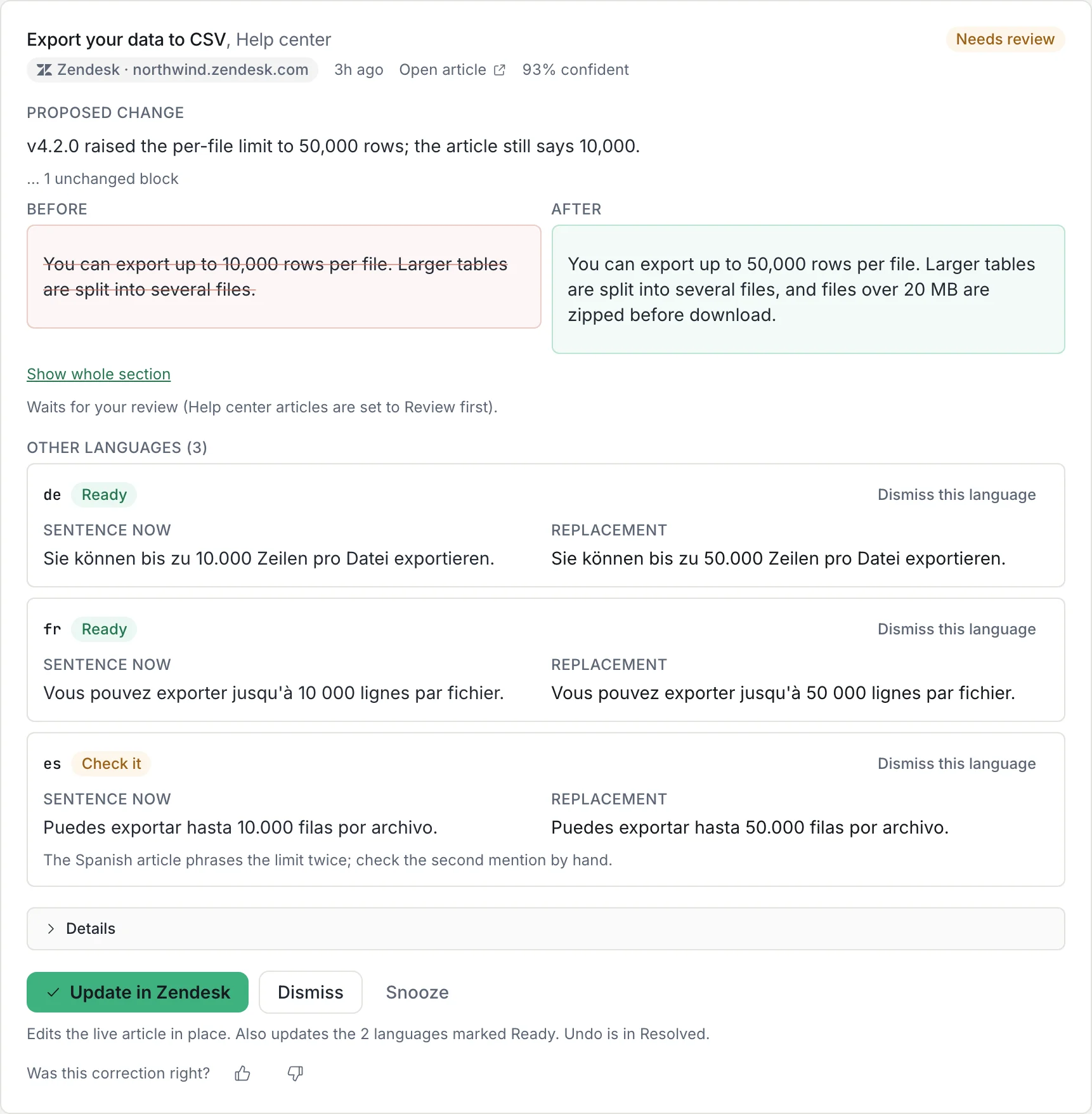
- When a release makes a sentence in a watched source article wrong, Amendary drafts the fix and links the change behind it.
- It finds the matching sentence in each existing translation and proposes the same change there. Only that sentence changes. The rest of the reviewed translation stays as it is.
- Code checks that every number, version, URL and name from the source sentence appears in each translated sentence. A language that fails the check waits for you and does not block the others.
- Applying a fix writes the article body and keeps each language's published or draft state. If someone edited the article since the fix was drafted, the write is refused. Undo is available for 30 days.
Where it stops: it edits article bodies only, so text inside a content block still needs a person. It does not handle screenshots, and it does not set Zendesk's outdated flag. A missing language can be drafted for credits and is saved unpublished. Each translation counts as one article record in your plan.
Sources
Read on 17 November 2026: Managing help center translations for articles, Translating articles in your help center using AI, Using content blocks in translated articles, Localizing help center content, Help Center API: Translations. Amendary behaviour is from the current product.