Update Intercom articles after a release
When a plan or a workflow changes, the old text can stay in your Intercom articles. This guide takes one article from the change to a fix in each language.
Before you start
- Intercom is connected in the region your workspace is hosted in (US, EU or Australia). See Connect Intercom Articles.
- An owner can choose what your articles follow.
- Help center is on Review first, so you see the first fix before it is applied.
1. Follow what shipped and watch the article
- On the Intercom card on the Pages tab, an owner sets Help articles follow to a repo or a changelog URL. A changelog suits a help center run by support.
- Select Browse, open the collection and select Watch on the article. All its languages are watched with it. Only published articles are listed.
2. Check a change
Daily checks find new releases or changelog entries. If the card follows a repo, Check recent changes on Home shows a result today. A change that makes nothing wrong drafts nothing.
In this made-up example, a changelog entry says the Team plan now includes 50 teammates instead of 20.
Before: The Team plan includes up to 20 teammates.
After: The Team plan includes up to 50 teammates.
fr: Le forfait Team inclut jusqu’à 50 coéquipiers.
nl: Het Team-abonnement bevat maximaal 50 teamleden.
3. Review the fix and each language
- Open the fix in the Queue. Read the change it links to: the plan, the new number, who it applies to.
- Check the source sentence first. If it is wrong, select Dismiss.
- Then read each language row. A Ready row passed the checks. A Check it or Not found row needs you.
- Select Dismiss this language for one you do not accept. The other languages still go.
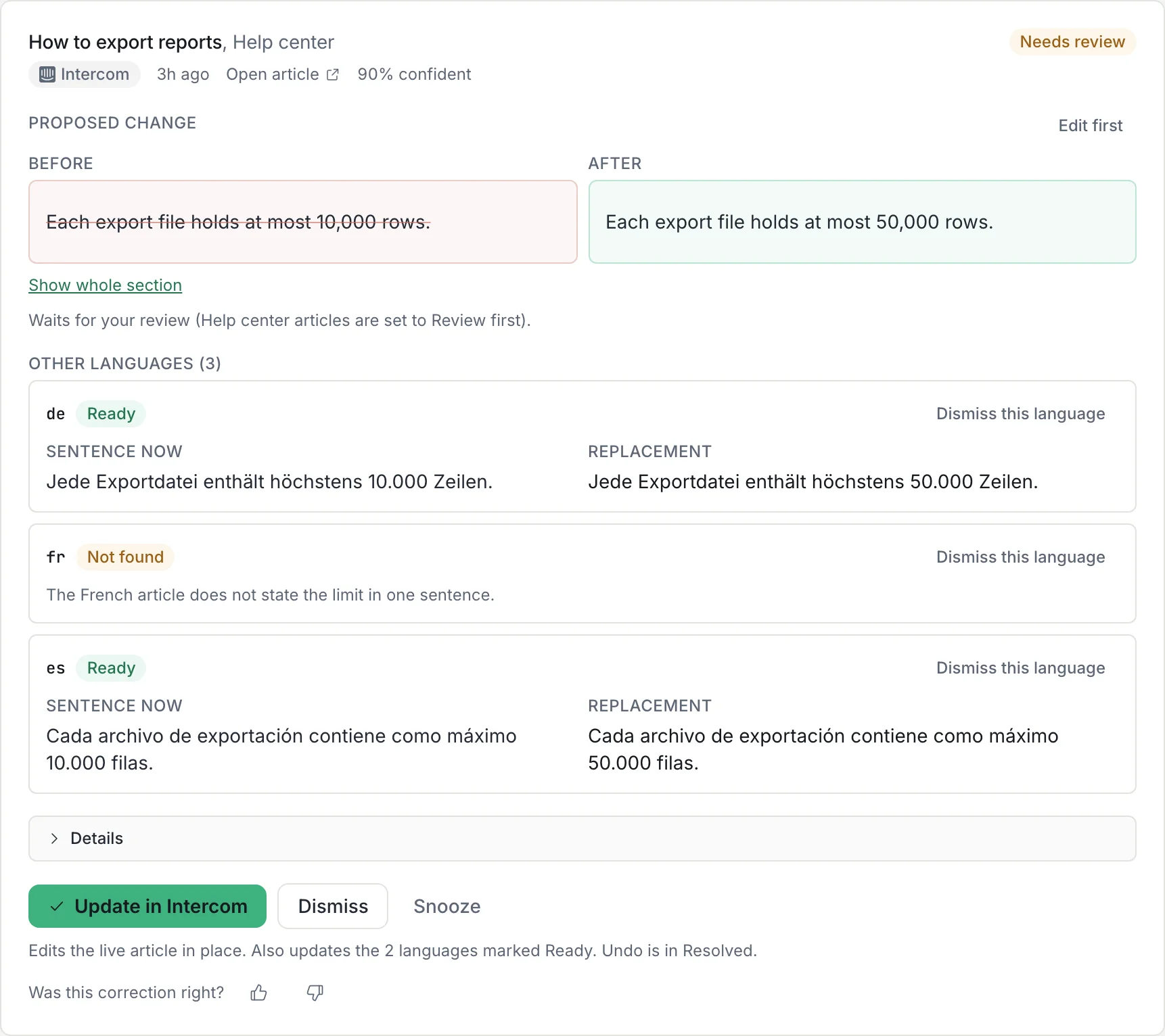
4. Update it and check Intercom
- Select Update in Intercom. The article and each Ready language are edited in place. Each language keeps its published or draft state.
- If someone edited the article since the fix was drafted, nothing is written.
- Open the article in Intercom and read each language. Fin answers are not checked here.
- For 30 days, Undo in the Queue writes the old text back. See Review and undo.
If a language is missing
- Turn on more than one language in your Intercom help center.
- Set the languages every article should have under Help-center languages in Settings, Integrations.
- On the Pages tab, open the watched article. Under Missing languages, select Draft translation.
- It spends credits and is saved as a draft in Intercom for you to publish. See Help-center languages.
If no fix appears
Check the region, that the article is published and watched, and that the card follows the right repo or changelog. See Troubleshooting.
More
What Amendary reads and writes: Intercom integration. A four-language example: Intercom help centers. How it compares to Intercom’s own tools: Intercom Fin.
The same guide for another destination:
Try Amendary with Intercom Articles
Connect Intercom Articles, choose the pages or articles to watch, and review proposed corrections with the change behind each one.
Free for 14 days with no card, and every edit waits for your review. Or free forever with your own Anthropic API key. Code is never touched.